How to Code Your Own Calculator
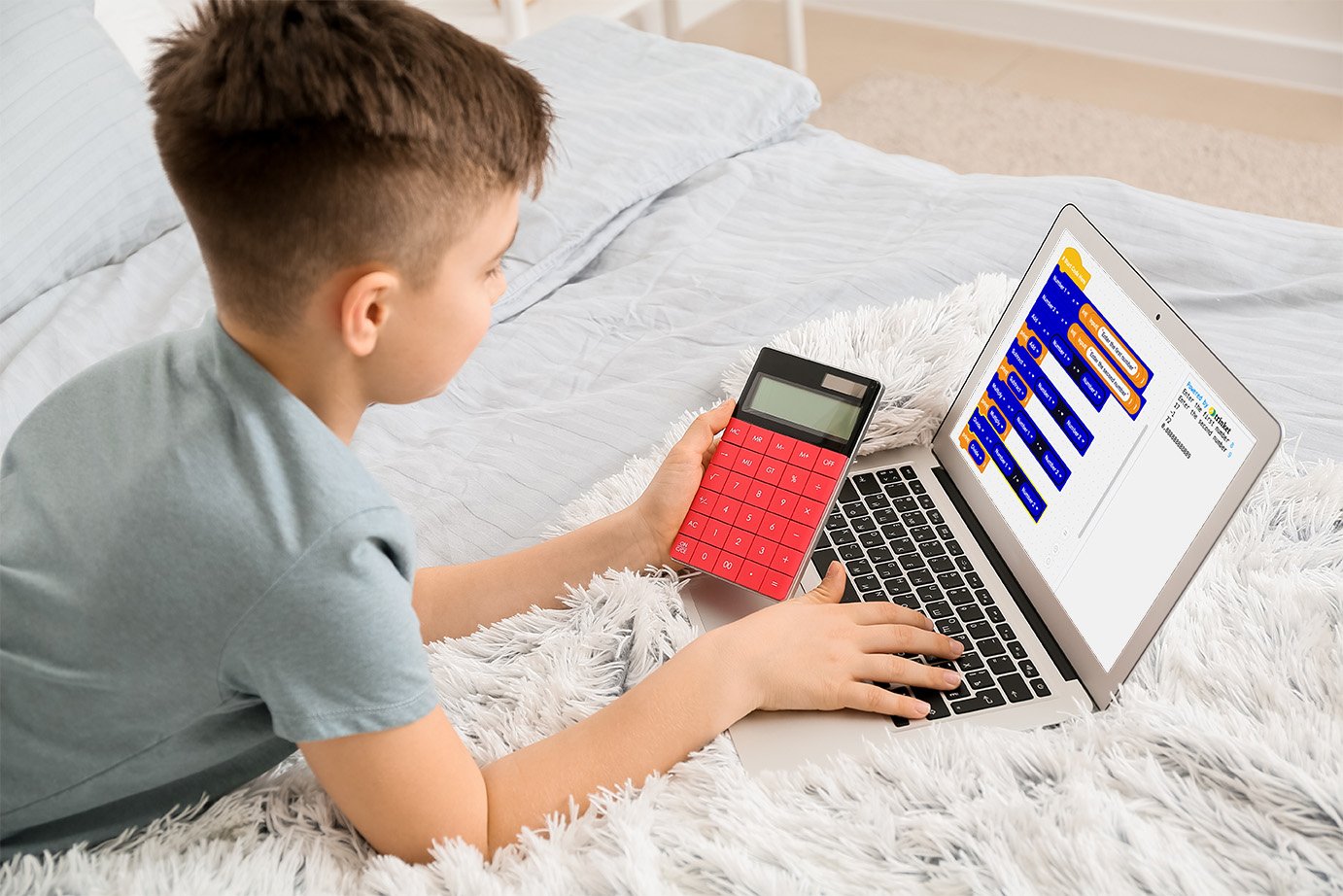
Coding games are a lot of fun and did you know that coding involves other subjects such as mathematics? Coding lends itself to being used in lots of different subjects, like mathematics, science, design technology, art, and geography! We have created a FREE coding activity for your child to do at home, with step-by-step instructions for creating their very own calculator.
Let’s get started!
Go to: https://app.edublocks.org/
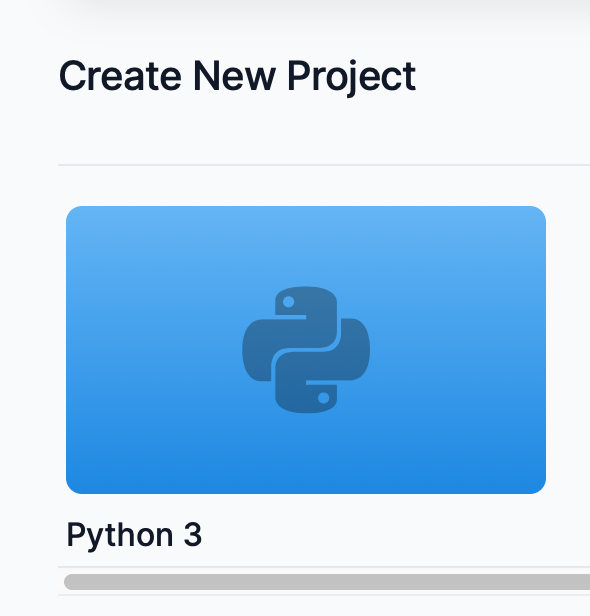
Scroll down and select Python 3
Time to create your animation!
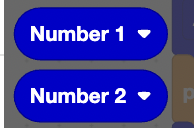
3. Start by creating two variables in Python. Click the blue variables button on the left side bar. Then click ‘Create Variable’. Name the first variable Number 1.
4. Repeat and name the second variable Number 2.
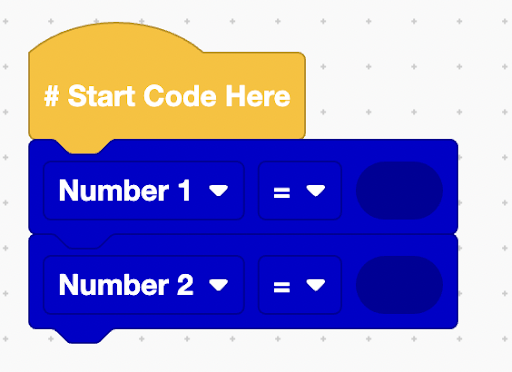
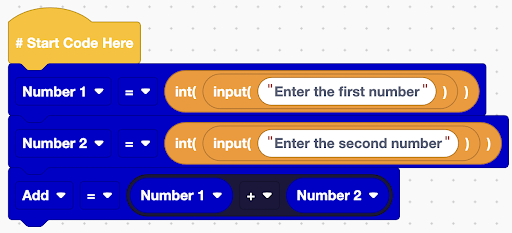
5. Double check that the code below appears on your screen.
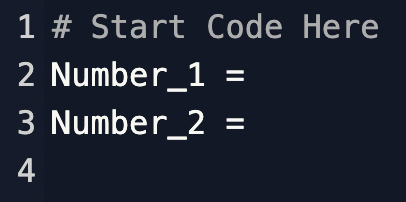
6. We are going to use the int() function to be able to use our program like a calculator. This function will mean that the Number_1 and Number_2 variables will expect an integer (whole number with no decimal points) to be inserted by the user.
First, click ‘statements’ and insert the int(1) function into the Number_1 Variable.
Second, repeat and insert the int(1) into the Number_2 Variable.
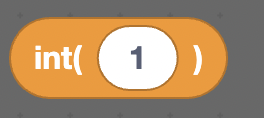
7. Now**,** we are going to use an input() function INSIDE the int() function. Doing this tells the code to expect a written number.

8. Change the words inside the input() function to “Enter the first number” for Variable 1 and “Enter the second number” for Variable 2.
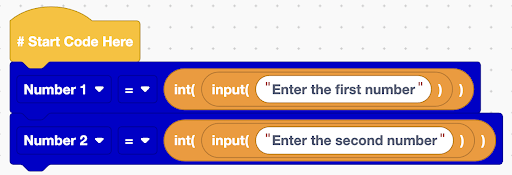
9. Now you are going to create a variable called ‘Add’. Then go into the ‘Math’ tab on the left sidebar and add in the ‘True + True’ function. Make the first truth Number 1 and the second truth Number 2.
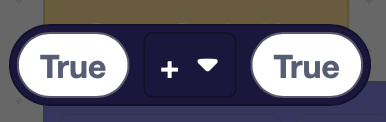
10. The final final product should look like this:
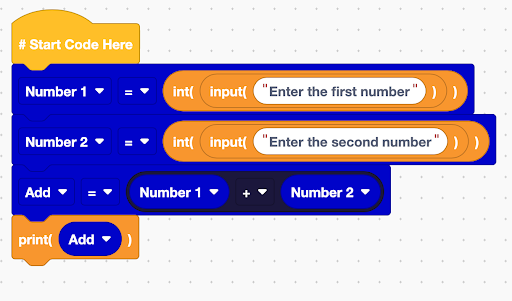
11. Next, add the print() function. Then, put in the ‘Add’ variable to the print() function. This will get the program to display the result of Number_1 and Number_2 being added together. Test it to see if it works by pressing the play button above the code!
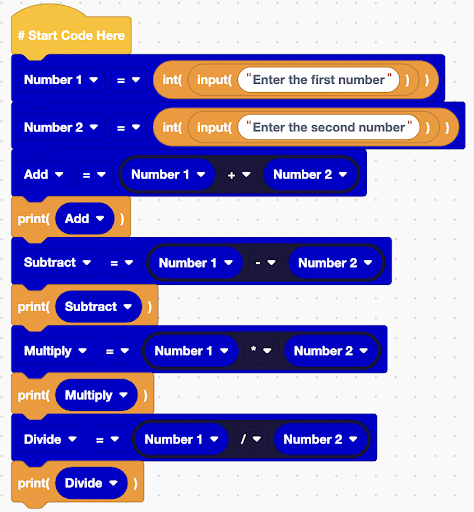
12. Repeat these steps for subtract, divide and multiply variables. This will result in a working calculator!
Bonus Challenge!
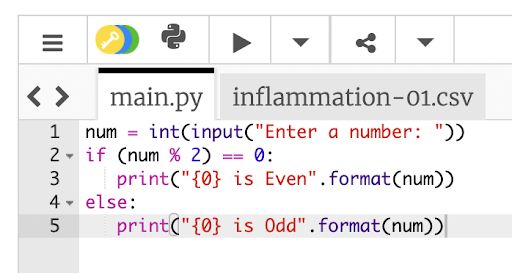
13. We are going to move to another platform now, this platform only understands script Python and not blocks.
14. Enter the code below! Here, we have to be very careful of our spelling.
THANK YOU for joining us!
If you enjoyed this coding activity be sure to sign up for our online coding classes - they’re not only a lot of fun, but really effective at teaching coding techniques and challenging students to develop their skills. Don’t miss this opportunity to build your own games and animations with a small group of kids of the same age and experience level as you.