Parent’s Guide to Parental Controls on Devices
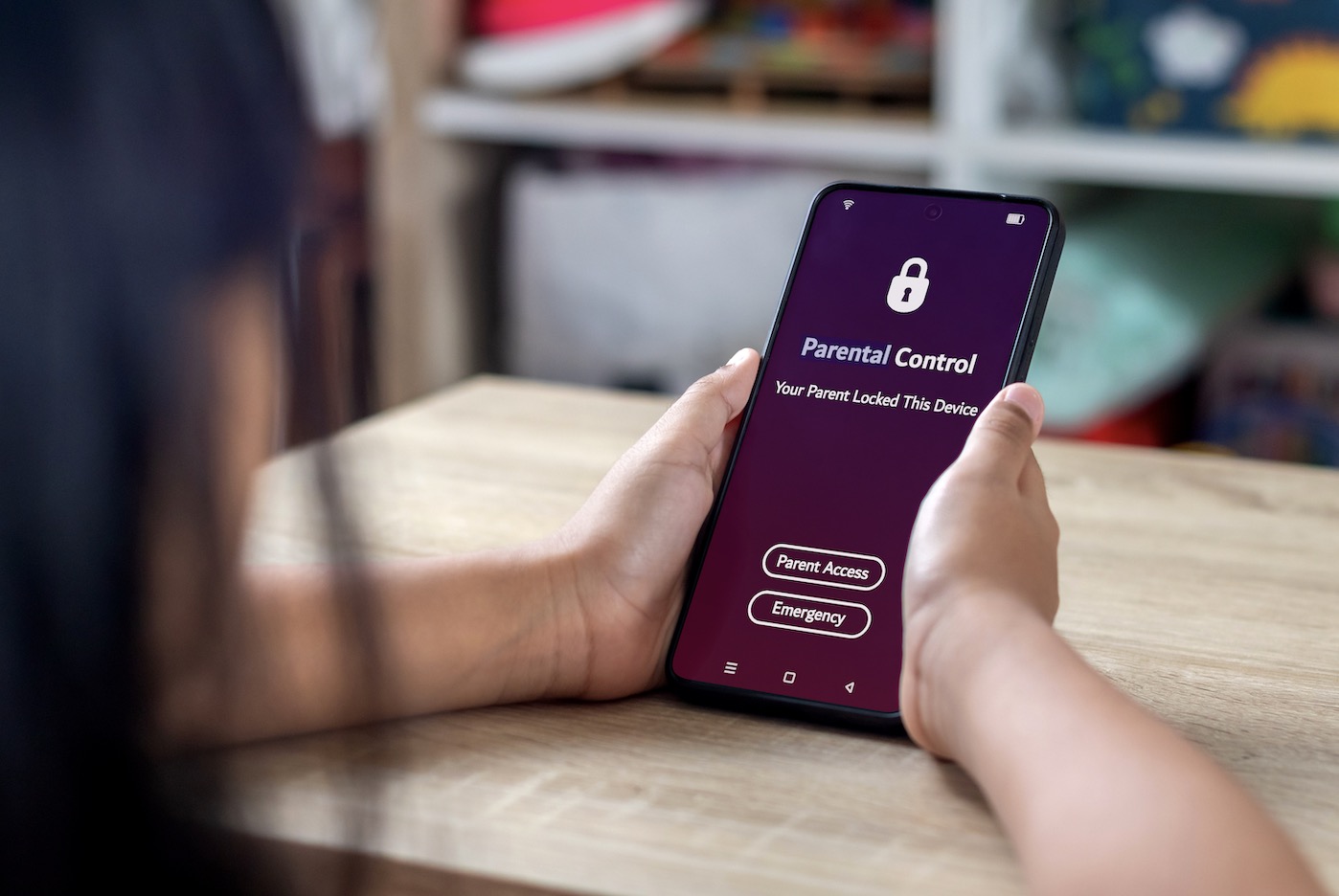
New Tech for Christmas? Here’s How to Set Up Parental Controls with Confidence 🎄📱🎮
Unwrapping a brand-new device is a magical moment for kids at Christmas - but before they dive in, it’s worth taking a few minutes to set up parental controls. These tools aren’t about limiting fun; they’re about creating a safe, age-appropriate digital environment where your child can learn, play, and explore with confidence.
Parental controls help protect children from content that isn’t suitable for their age, manage screen time to support healthy routines, and reduce the risk of accidental purchases or online interactions they’re not ready for yet. Setting them up from the start is especially important - once habits form, they can be harder to change later. Starting with boundaries helps children understand expectations and makes future adjustments much easier.
Think of parental controls as the digital equivalent of teaching road safety before letting your child ride a bike. With the right settings in place, you can feel more confident saying “yes” to new technology while staying involved in how it’s used.
Parental controls help you manage screen time, limit access to age-appropriate content, and understand how your child is using their new device. Below is a simple, parent-friendly guide to setting up controls on the most popular devices.
Apple Devices (iPhone & iPad)
Open Settings
Tap Screen Time
Select Turn On Screen Time
Tap Content & Privacy Restrictions and create a passcode
Customize limits for apps, websites, purchases, and content ratings
💡 Tip: Screen Time also lets you set downtime and app limits - great for bedtime routines.
Android Phones & Tablets
Open Settings
Look for Digital Wellbeing & Parental Controls
Set up controls to manage app usage, content filters, and screen time
📌 Note: Options may vary slightly depending on the brand and Android version.
Windows PCs
Open Settings
Go to Accounts > Family & other users
Select Add a family member and create a child account
Manage screen time, apps, and web access through your Microsoft family dashboard
Mac (macOS)
Click the Apple menu > System Settings (or System Preferences)
Select Screen Time
Set a Screen Time passcode
Adjust content, app, and time limits for your child
Xbox (One / Series X|S)
Press the Xbox button on the controller
Go to Profile & system > Settings
Select Account > Family settings > Manage family members
Create or manage child accounts, including screen time and content limits
PlayStation (PS4 / PS5)
Open Settings
Choose Family and Parental Controls
Set up a family account and add child profiles
Apply age-appropriate content and playtime restrictions
Nintendo Switch
Open System Settings from the home screen
Select Parental Controls
Choose to set up directly on the console or via your smartphone
Follow the prompts to manage game ratings and playtime limits
🎮 Bonus: The mobile app makes monitoring especially easy.
Amazon Fire Tablets (Kindle Fire)
Swipe down and tap Settings
Select Profiles & Family Library or Parental Controls
Create a child profile and set content and daily time limits
Google Chromebook
Open Settings
Look for Family Link or Parental Controls
Create a family group, add your child’s account, and manage usage and content
A Final Word for Parents
Parental controls aren’t a “set it and forget it” tool. As your child grows, revisit settings together and adjust them to match their maturity and needs. Keep PINs and passcodes private, and consider having open conversations about online safety and responsible device use.
Take a look at our Guide to Raising Future Ready Kids for more hints and tips on parenting in a new digital age.